• Spectro:o DMS
  • Spectro:o Digital Signage
  • Contact
  • English
    • Romanian
  • Spectro:o DMS
  • Spectro:o Digital Signage
  • Contact
  • English
    • Romanian

Spectro:o DMS

home/Documentație/Spectro:o DMS
Popular searchFirst Steps, How to access the Management Platform, General Information
Expand All Collapse All
  •  General Information
    • Player installation procedure
    • Player connection procedure to the network
    • System Overview
    • Acronyms and Abbreviations
    • Contact
  • HelpDesk Spectro:o
  •  Web Administration Platform
    • How to access the Management Platform
    • First Steps for a New User
    • Schedule
    • Players
    •   Player Groups
      • How to edit a Player Group?
      •   How to add a Player Group?
        • Types of Playlist
        • Fillers
      • How to automate your playlists with Spectro:o DMS?
    •   Content Management
      • Video files
      • Images
      • Fillers
      • Audio upload
      • Audio playlists
      • How to manage Paid Content?
    • Global Library
    • Users
    • Indoor Layouts
    • Sponsors
    • Centralizer
    • Last Displays
    • Content Overview
    • Players without Content
    • Audit
  • Verification process in case of malfunction
  • Verification Process in Case of Malfunction – SP 4G Module –

Verification process in case of malfunction

Index

  • Power Supply Verification – Player & Screen
  • Connecting the Player to the Network via LAN Cable
  • Verifying the Connection Between the Player and Screen via HDMI Cable
  • Verifying the Content Displayed on the Player
  • Player Restart Procedure
  • If you have any questions or encounter any difficulties, you can contact us at:

Note

  • To achieve the maximum resolution supported by the screen, ensure that the screen is turned on before powering the player.


  1. Power Supply Verification – Player & Screen

To begin, both the Screen and Player must be connected to a power source.

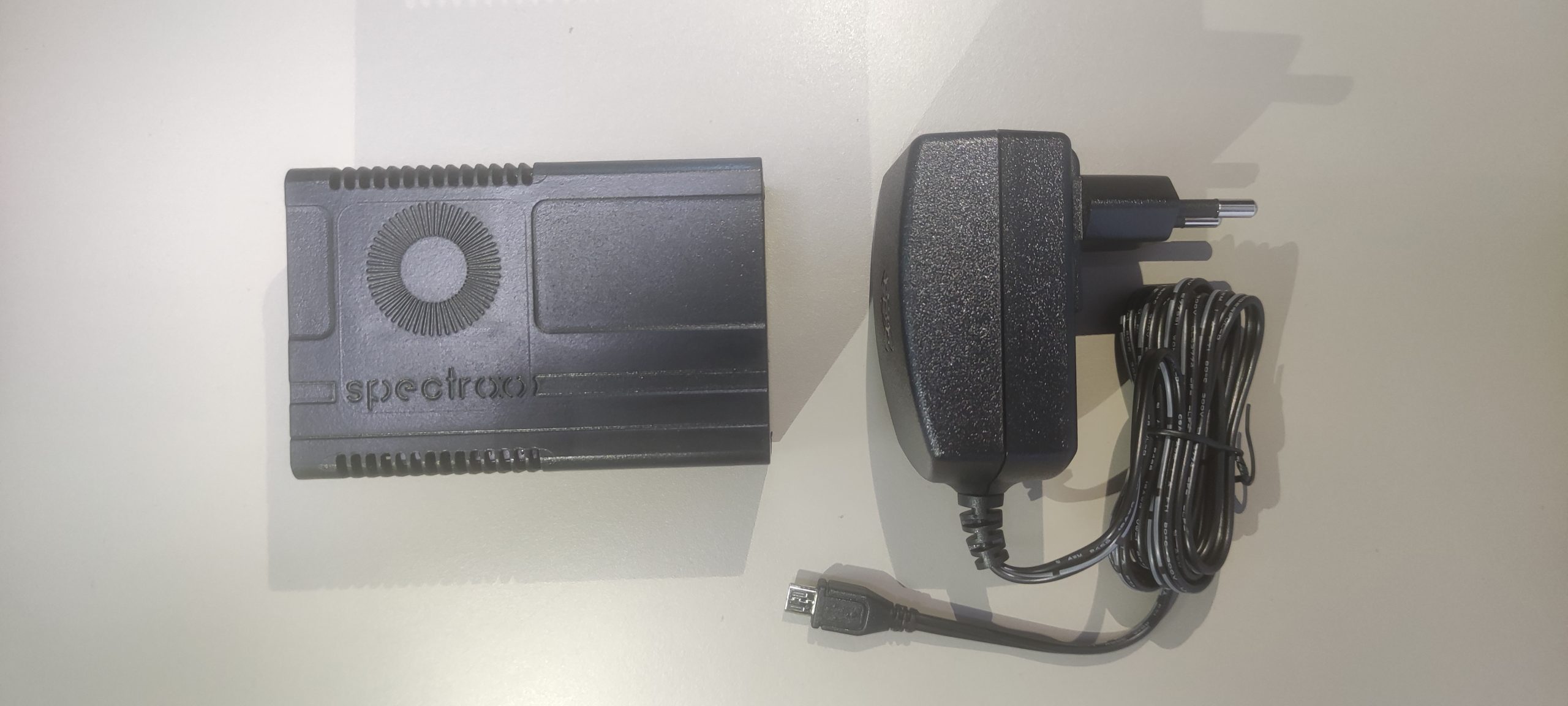
In the image below, you can see the player’s power cable along with the player:
Connect the player to the power supply following the instructions in the video below:
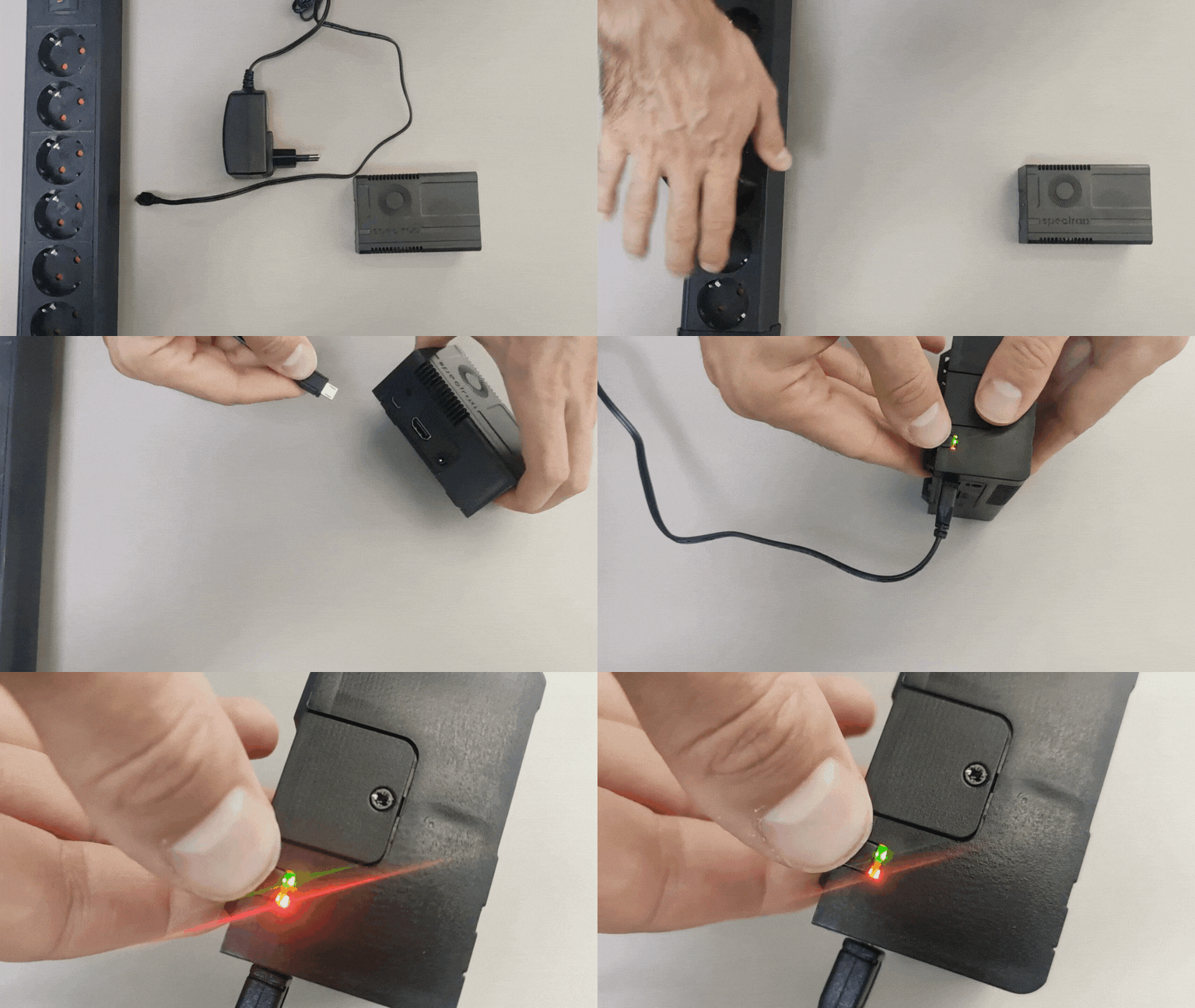
After completing the power connection procedure, we ensure that the two red and blinking green LEDs are on, as shown in the video above.

  1. Connecting the Player to the Network via LAN Cable

The next step is connecting the player to the Internet, as demonstrated in the video below:
It is important to ensure that there is a network link on the player’s port.

  1. Verifying the Connection Between the Player and Screen via HDMI Cable

In the image below, you can see the HDMI cable:

Ensure that this HDMI cable is connected between the Player and Screen, as shown in the image below:
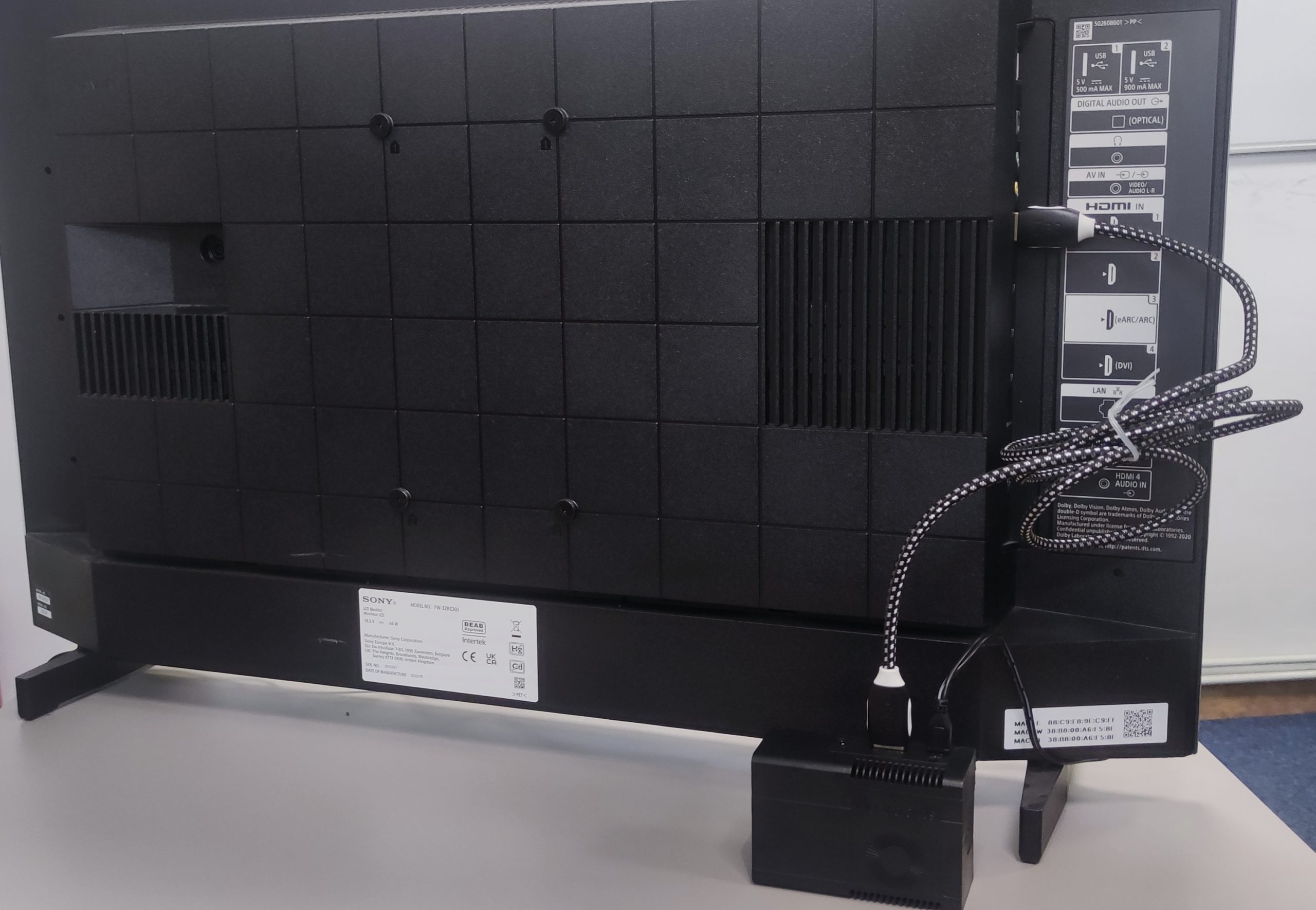
Set the screen to HDMI 1 input or another HDMI input if the cable was connected to a different port. This can be done using the remote control, by pressing the “SOURCE” button and switching to the corresponding HDMI input from the menu displayed on the screen.

In the video below, you can see how this operation is performed:


  1. Verifying the Content Displayed on the Player

For more details, see the “Quick Guide for New Users” section in the platform.


  1. Player Restart Procedure

It is necessary to restart the Spectro:o player when it appears as “Offline” in the platform. In this situation, restarting can only be done physically by the location staff.

To correctly restart the Spectro:o player, follow the steps below:

  • Identify the player behind the screen. Depending on the situation, you can disconnect the player’s power either by unplugging the power cable directly from the player or by disconnecting the power adapter from the socket. In some cases, you can cut the power using the button on the power cable.
  • After the power is interrupted, the player will remain powered for about 1-2 minutes due to the internal battery. Wait until all the LEDs turn off and there is no signal on the screen.
  • Reconnect the power cable to the player or plug the power adapter back into the socket, and wait for the Spectro:o logo to appear on the screen, indicating that the operating system is loading. Once the system is loaded, wait for the player to display the content allocated from the Spectro:o platform.
  • Check after about 5-10 minutes if the player is online in the platform and if the playlist is synchronized.

In the video below, you can see how to disconnect the player’s power by unplugging the adapter from the socket.
  1. If you have any questions or encounter any difficulties, you can contact us at:

Email : helpdesk [at] spectroo [dot] eu

Tel: +40 770 556 819 / +40 771 573 035

Was this helpful?

Yes  No
Related Articles
  • Player installation procedure
  • Player connection procedure to the network
  • HelpDesk Spectro:o
  • General Information
About Spectro:o DMS
Spectro:o is an intuitive platform that helps you manage and distribute digital content on an endless number of screens.
Useful Links
  • General Information
  • Web Administration Platform
Contact Us
  • Reconstructiei, 2A 550129 Sibiu, Romania
  • dms [at] spectroo [dot] eu
  • Privacy Policy
  • © 2021 Spectro:o. All Rights Reserved.

Administrează consimțământul
Pentru a oferi cea mai bună experiență, folosim tehnologii, cum ar fi cookie-uri, pentru a stoca și/sau accesa informațiile despre dispozitive. Consimțământul pentru aceste tehnologii ne permite să procesăm date, cum ar fi comportamentul de navigare sau ID-uri unice pe acest site. Dacă nu îți dai consimțământul sau îți retragi consimțământul dat poate avea afecte negative asupra unor anumite funcționalități și funcții.
Funcționale Always active
Stocarea tehnică sau accesul este strict necesară în scopul legitim de a permite utilizarea unui anumit serviciu cerut în mod explicit de către un abonat sau un utilizator sau în scopul exclusiv de a executa transmiterea unei comunicări printr-o rețea de comunicații electronice.
Preferințe
Stocarea tehnică sau accesul este necesară în scop legitim pentru stocarea preferințelor care nu sunt cerute de abonat sau utilizator.
Statistici
Stocarea tehnică sau accesul care sunt utilizate exclusiv în scopuri statistice. Stocarea tehnică sau accesul care sunt utilizate exclusiv în scopuri statistice anonime. Fără o citație, conformitatea voluntară din partea Furnizorului tău de servicii de internet sau înregistrările suplimentare de la o terță parte, informațiile stocate sau preluate numai în acest scop nu pot fi utilizate de obicei pentru a te identifica.
Marketing
Stocarea tehnică sau accesul este necesară pentru a crea profiluri de utilizator la care trimitem publicitate sau pentru a urmări utilizatorul pe un site web sau pe mai multe site-uri web în scopuri de marketing similare.
  • Manage options
  • Manage services
  • Manage {vendor_count} vendors
  • Read more about these purposes
Vezi preferințele
  • {title}
  • {title}
  • {title}
Popular searchFirst Steps, How to access the Management Platform, General Information